Review moderation
Decide whether you review each one by hand or they publish themselves (holding back any with inappropriate language).
Widget design
Change the look of your reviews widget instantly — it applies to all 4 formats (cards, carousel, pop-up and wall).
Tints the card borders, avatars, carousel arrows and your reply bar.
The dark background here belongs to the editor only, so the card stands out — it is not your website’s background.
Advanced design
How each review is laid out, the verified-purchase badge, the rating badge, the "Leave your review" button and pagination. Everything shows live on the right.
It updates by itself with every change. Nobody sees any of this until you press Save.
Embed it on your site
Pick the format, see below how it really looks with your styling, and copy the code to paste on your site.
This view uses your real approved reviews and the styling set in the Widget design tab — it updates instantly even before you save. Your visitors always see the last thing you saved.
Where exactly do I paste it? — instructions for your platform
Live conversion pop-up
The bubble that appears in the corner of your site showing real reviews ("Laura just left 5 stars · 2 days ago"). Here you decide how it behaves — it goes on your site with the same code above, choosing the Floating notification format.
The preview shows almost instantly so you don’t wait — on your real site it honors the delay and per-visit maximum you set. Visitors can close it, and it won’t show again that visit.
Your Shopify store New
Connect your store to use Loalia inside Shopify: review widgets on your theme and, very soon, automatic review requests after every order.
To connect your store, install the Loalia app from the Shopify App Store and, inside the app, click "Link to my account".
Does Shopify say the app is unavailable? Connect it with a custom app
Until "Loalia Reviews" is published on the App Store, Shopify only allows installing it on development stores. For your real store, create a custom app in its admin and paste its token here — it works exactly the same:
- In your store admin: Settings → Apps and sales channels → Develop apps → Create an app (call it "Loalia").
- Under "Configure Admin API scopes", tick read_orders and read_products and save.
- Press Install app and copy the Admin API access token (it starts with
shpat_and is shown only once).
Connected platforms
The sites hooked up to your account with the Loalia plugin. From here you can cut the link to any of them, even if you can't get into it any more.
Your QR code
Print it and put it in sight — when scanned, your customers land straight on the review form.
It updates by itself as you change any setting.
Colors
Image in the center
You can upload any image — it doesn’t have to be your business logo.
Tips: square and at least 300×300 px so it doesn’t blur; PNG if you need a transparent background (otherwise JPG or WEBP); avoid small text or fine detail — it shows quite reduced inside the QR.
Your QR on invoices and receipts
Add this stamp once to your invoice template or your POS receipt footer — and it prints on all of them forever. Whoever pays scans it, leaves a review and, if you have the reward enabled, receives their prize by email.
Pure black, made for 58/80 mm receipt printers.
Horizontal band to insert in your invoice footer.
Paste it in your POS "receipt footer". The short link goes straight to your review form.
How do I add it to MY invoicing software? — instructions per platform
Holded / Quipu / online invoicing tools
Download the invoice stamp (A4) → in your software open Settings → Invoice templates (or "Document design") → add an image to the footer and upload the PNG. Save the template: from then on it prints on every invoice.
Invoices made in Word / Excel
Open your invoice template → Insert → Image → choose the stamp PNG and place it at the footer. Save the file as a template and done.
Shopify (online store)
If you use the "Order Printer" app (free, by Shopify), edit the invoice/packing-slip template and add the stamp as an image at the end. You can also add the short link to the order confirmation email: Settings → Notifications → Order confirmation.
WooCommerce (WordPress)
With the free "PDF Invoices & Packing Slips" plugin: WooCommerce → PDF Invoices → Documents → footer, and there paste the text with the short link or insert the stamp image into the template.
Bar / restaurant / retail POS
Almost every POS (Square, SumUp, Revo, Lightspeed...) has a "receipt footer" or "receipt logo" setting in its printing options. If it accepts images, upload the receipt PNG; if text only, paste the line above. Can’t find it? Ask your POS support: "how do I add an image or text to the receipt footer?".
NFC tag: a review with one tap
An NFC sticker or card by the till: your customers hold their phone close and your form opens. No app, no camera. You write it yourself from an Android phone; on iPhone, with a free app.
Design your card sticker
The NFC card comes blank. Here you design its sticker, download it and stick it on: your business, your wording and your colors. It comes out at the exact size of a credit card.
Your QR 3D-printed Yearly plan gift
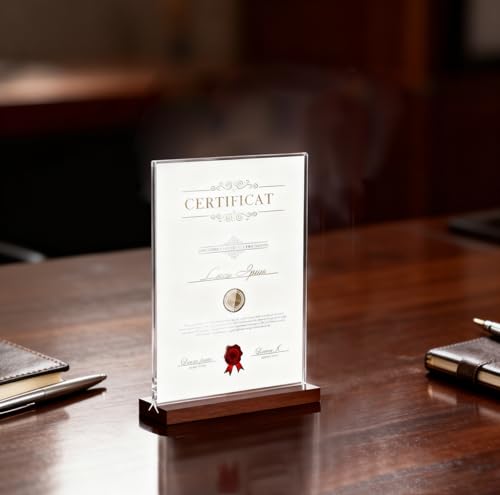
We ship you the countertop stand with the sign you design below already printed and fitted inside, ready for your counter. Manufacturing and shipping are handled personally — this only registers your request.
On a yearly plan (Pro or Agency), the first one is free. Otherwise (monthly plans or extra units) it costs €9.99 each.
Design the sign for your stand
The sheet that goes inside the acrylic stand. A6 size (105 × 148 mm) — what you design here prints at exactly that size. Nothing is saved until you press “Save design”.
Start from a template
It changes the colors, the typeface and the layout. Your headline and your line stay exactly as you have them.
Make it yours
Click any piece of the sign and its settings open up. Drag it to move it.
This is how it will look on your counter.
The PDF carries the size inside it: print it and it comes out at 105 × 148 mm, with nothing to adjust.
This is how it would look on your stand
The photo is the stand you will receive, with your design inside.
Text and type
Sign background
The QR code
Slot for the NFC card
It marks the exact spot on the paper where your card goes, at its real size. That way the same sign works both for scanning the QR and for tapping a phone.
Your customer reads this with the card already stuck on. Inside the slot it prints “Stick your NFC card here”, which is covered up the moment you stick it on.
The five stars
The icon at the top
Bands and borders
Click a style to add it, and the same one again to remove it. They are drawn in your sign's colors.
Your logos
A second brand, a partner, or a different logo just for this sign. Drag it in the preview to place it.
What logo to upload: a PNG with a transparent background, which is what lets it blend into the sign instead of showing up with a white box around it. At least 600 pixels wide (or 1000 if you are going to make it big), with no spare white edges. A JPG works too, but it will bring its background with it.
Your own image or design
It goes behind everything else, so it works as a background too. Drag it in the preview to place it.
What image to upload: if you are going to use it as a full background, make it at least 1240 × 1748 pixels — that is the sign at print quality. Use JPG for a photo, or PNG if it has a transparent background. A smaller one will look blurry in print, even though it looks fine on screen.
Social & Google
Paste the links to your social profiles: your customers will see one button for each. Empty ones are not shown.
Your QR code to get followers
A different QR from the reviews one: scanning it opens your "Follow us" page. Design it your way: every change shows instantly in the preview.
This is how your QR looks
If you print the PDF, it comes out about 12 cm wide.
Design the QR
Phrases
Colors
Your networks' logos
The logos of the networks you linked above are shown.
QR center
Shape
Reward per review
Offer something to whoever leaves a review — it’s emailed to them as soon as it publishes.
The prize wheel
Instead of always giving the same prize, whoever leaves a review spins a wheel and takes home whatever it lands on. The email with their prize goes out by itself.
Unique coupons for a physical shop
For bars, hairdressers, clinics and high-street shops: every review gets a different, single-use coupon, and your team checks it in seconds with a phone. If you only sell online with the plugin, your shop already creates and checks its own coupons: you don't need this tab.
The customer leaves their review and receives their coupon (code + QR) by email and on screen.
They show it at your place. Your employee scans it with the phone's camera or types the code.
One tap: “Mark as used”. If they show it again, it says “already used”.
One coupon, one prize. It doesn't matter who brings it: it only works once.
Loading the coupons…
No coupons yet. They'll appear here as soon as someone leaves a review.
| Code | Premio | Review | Emitido | Caduca | Estado | Canje | Acciones |
|---|
Video review script
When someone records their video review, we suggest questions that appear over the camera so they never go blank. Write them your way — leave empty the ones you don’t want.
Widget analytics
How many times your widget loaded and how many clicks it sent to your site, over the last 30 days.
Last 14 days
No data yet: as soon as your widget loads on your site, it will show up here.
See the day-by-day table
| Date | Views | Clicks |
|---|
Emails DEMO MODE — generated but not actually sent
Here you see the exact content of every email that would be generated: alerts for you, and thank-yous/rewards for the reviewer.
Latest emails
No emails generated yet
They will land here as soon as the first review comes in.
📥 Where you can bring your reviews from
None gets left out. Pick whichever suits you:
✨ Import from your website (automatic)
🔎 Nothing to review yet: analyze your site in step 1.
🛒 Import from AliExpress (dropshipping)
🔎 Nothing to review yet: paste the link in step 1.
Import reviews from CSV
Already have reviews on Google, social media or elsewhere? Bring them in one go instead of asking one by one.
File format
La primera fila debe ser la cabecera, con estas columnas (en este orden o el que quieras, se detectan por nombre): nombre;cargo;empresa;texto;valoracion;email;fecha. Only nombre, texto and valoracion (1 to 5) are required — cargo, empresa, email and fecha can be left empty. Se acepta el archivo separado por punto y coma (Excel en español) o por comas — se detecta solo.
nombre,cargo,empresa,texto,valoracion,email,fecha
EXAMPLE (delete this row),,,"Write the review here exactly as your customer left it.",5,,2026-01-31
The fecha column (optional) is the day the customer left the review, for example 2026-01-31 or 31/01/2026. If you leave it out, the review shows no date in your store.
Import a review from a screenshot
🔎 Nothing to review yet: upload a screenshot in step 1.
What if my review lives somewhere else? Wherever it is: take a screenshot and the AI reads the name, text and stars by itself. It works with any platform — for example:
Amazon · El Corte Inglés · Google · Temu · Etsy · eBay · Instagram · WhatsApp · Facebook · TripAdvisor · Trustpilot · Milanuncios · Wallapop · Booking · Shein · PcComponentes · Leroy Merlin
Amazon, Temu and the rest don’t let software read their reviews directly — they block robots. Hence the screenshot: the route that works with all of them.
✉️ Imported reviews never receive Loalia emails. The thank-you and the reward only go to people who reviewed through your form, your QR or the after-order email — the only ones who gave you their address knowing who you are.
Hello!
All set to collect reviews!
Share your form, approve what comes in and show it anywhere. This is your quick summary.
You have Pro customizations saved
They are not applied on your current plan: . Nothing was deleted — they will switch back on by themselves if you return to Pro.
Your collection form
It’s the link you send your customers so they can leave their review.
The latest review to arrive
None has arrived yet. Share your collection link with your customers to start receiving them.
What would you like to do today?
What's new in Loalia
Quick help
💬 Ask for a review via WhatsApp
- Press "Ask via WhatsApp" above.
- Pick the contact and send the message: it already carries your link.
- When the review arrives, approve it in "Reviews".
🧩 Put the reviews on your website
- Open "Widgets" and pick the design.
- In the "Embed it on your site" tab, copy the code.
- Paste it on your website, Shopify or WordPress.
📱 Print your QR
- Open "QR and signage".
- Add your colors and logo if you like.
- Download it and place it on the counter, receipts or invoices.
What would you like to learn today?
Videos and step-by-step guides for every feature. Search by a word or pick a topic.
We could not find any guide for that word. Try another one or write to us at hola@loalia.es.
Your review wall
A page of its own with all your approved reviews — share it on social, put it in your email signature or link it from your site.
Your link to share
The wall shows your logo by default. You can hide it (and change colors, shape and typography) from .
Creative Studio
What would you like to design today? Everything is built from your real reviews and your widget’s styling.
My creations
Every image, video or ad you download or share is saved here automatically (the last 24 are kept).
You haven’t generated any creations yet — pick a design above to get started.